
How it all fits together
Before you jump in, it helps to understand how the CMS is structured. There are three main building blocks, and they work from the top down:
Media is your content. A new promotion, a menu update, a combo deal graphic, a brand video. If it's going on your screens, it starts here. Upload your images and videos to the CMS Media Library and they're ready to use.
Playlists are collections of media. Think of a playlist as a TV show — it's a sequence of content items that play in order. You control what's in the playlist, how long each item plays, and when it starts and stops.
Channels are what your screens actually display. Think of channels like TV channels at home — TVNZ 1, TVNZ 2, Sky Sport (or Seven, Nine, Ten if you're in Australia). A screen can have multiple channels available, but it can only show one at a time. You add playlists to channels, set a schedule, and assign the channel to a screen.
So the flow is: Upload your media → add it to a playlist → add the playlist to a channel → assign the channel to a screen.
Once that's done, your content is live.
Logging in
Go to https://apps.eyemagnet.com/media and log in with the username and temporary password you received by email. You'll be prompted to update your password on first login.
Find out more → How to log in and out
The Dashboard
When you log in, you'll land on the Dashboard. This gives you a snapshot of your network: content assigned to playlists, playlists assigned to channels, and channels assigned to screens. It also flags unused media, playlists, and channels — handy for cleaning up old content later.
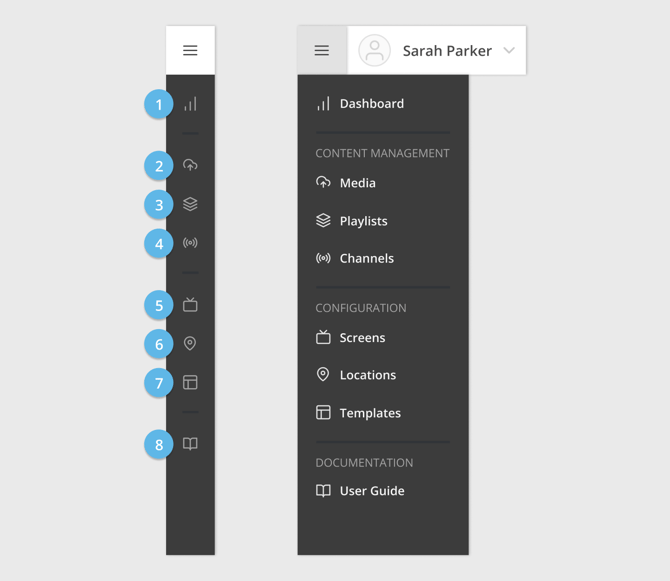
Find out more → View the navigation guide
Uploading media
This is where all your content lives. Everything you want on your screens gets uploaded here first.
Click Media in the left-hand panel. Here you'll see all your current images and videos.
To upload new content, click the Upload button or drag and drop files directly onto it from your computer. You can upload multiple items at once.
Once uploaded, click on any media item to see its properties - file size, resolution, format. If something doesn't look right on your screen, this is the first place to check that the file matches the expected resolution.
At the bottom of the media item's properties, you'll also see where the content is currently being used. The find and replace feature is a quick way to swap out old content with a newer version across all playlists at once.
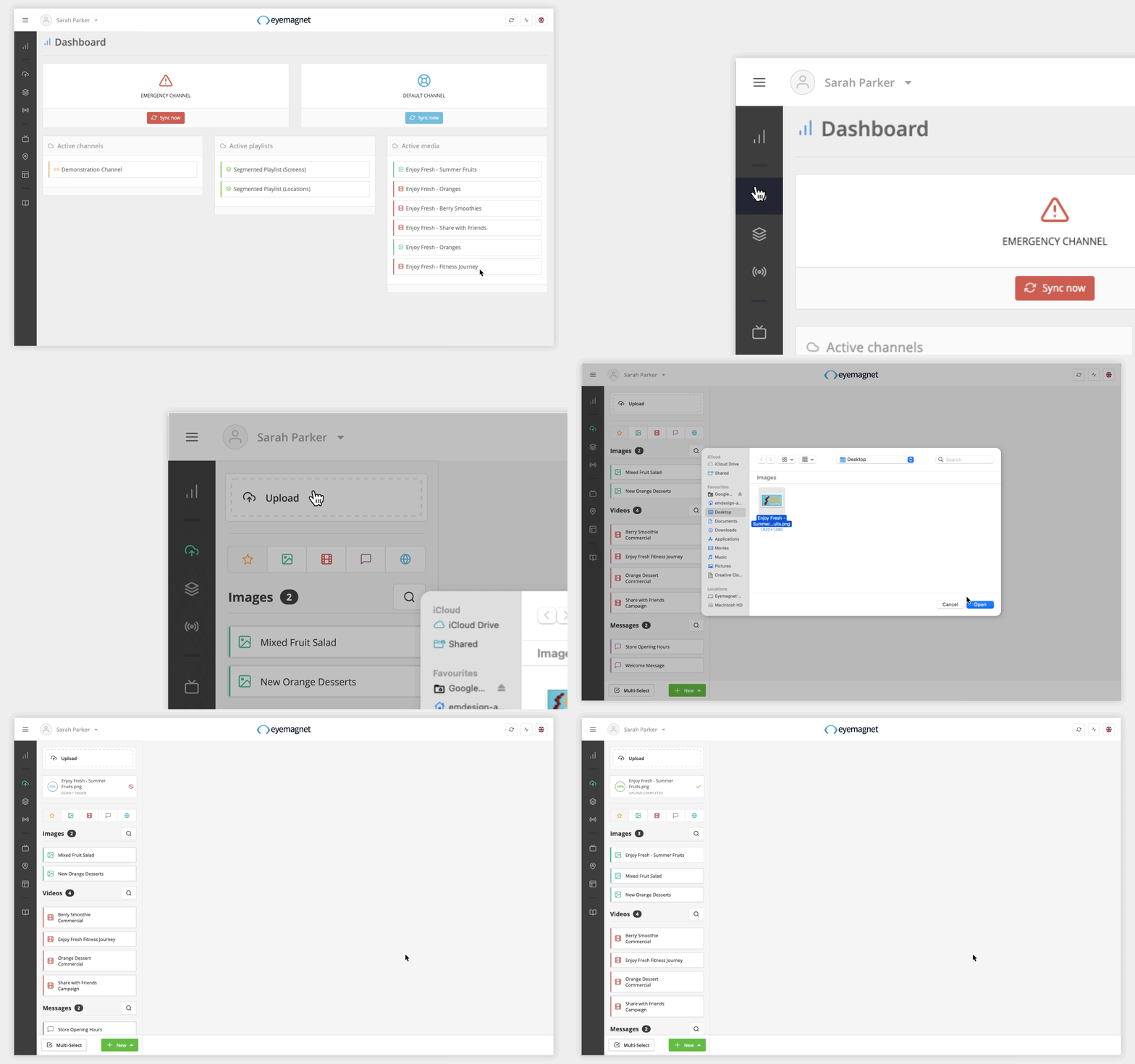
Find out more → Upload and Manage Media Items
Creating a playlist
Playlists are how you organise your content into a sequence. Think of them as the lineup of what plays on a screen, and in what order.
Go to Playlists in the left-hand panel and click New at the bottom.
Give your playlist a useful descriptive name. Select the template you want - this determines the screen layout (single window or multi-window) and resolution (FHD, UHD, portrait, or landscape). Choose the template that matches your screen setup.
Background colour is only needed if your content has transparent areas - otherwise, leave it as default.
Now add your media items to the playlist. For each item, you can set individual controls: embargo dates (don't show before this date), expiry dates (stop showing after this date), days of the week, and display duration. You'll also have the option to set these at the playlist level when you add it to a channel.
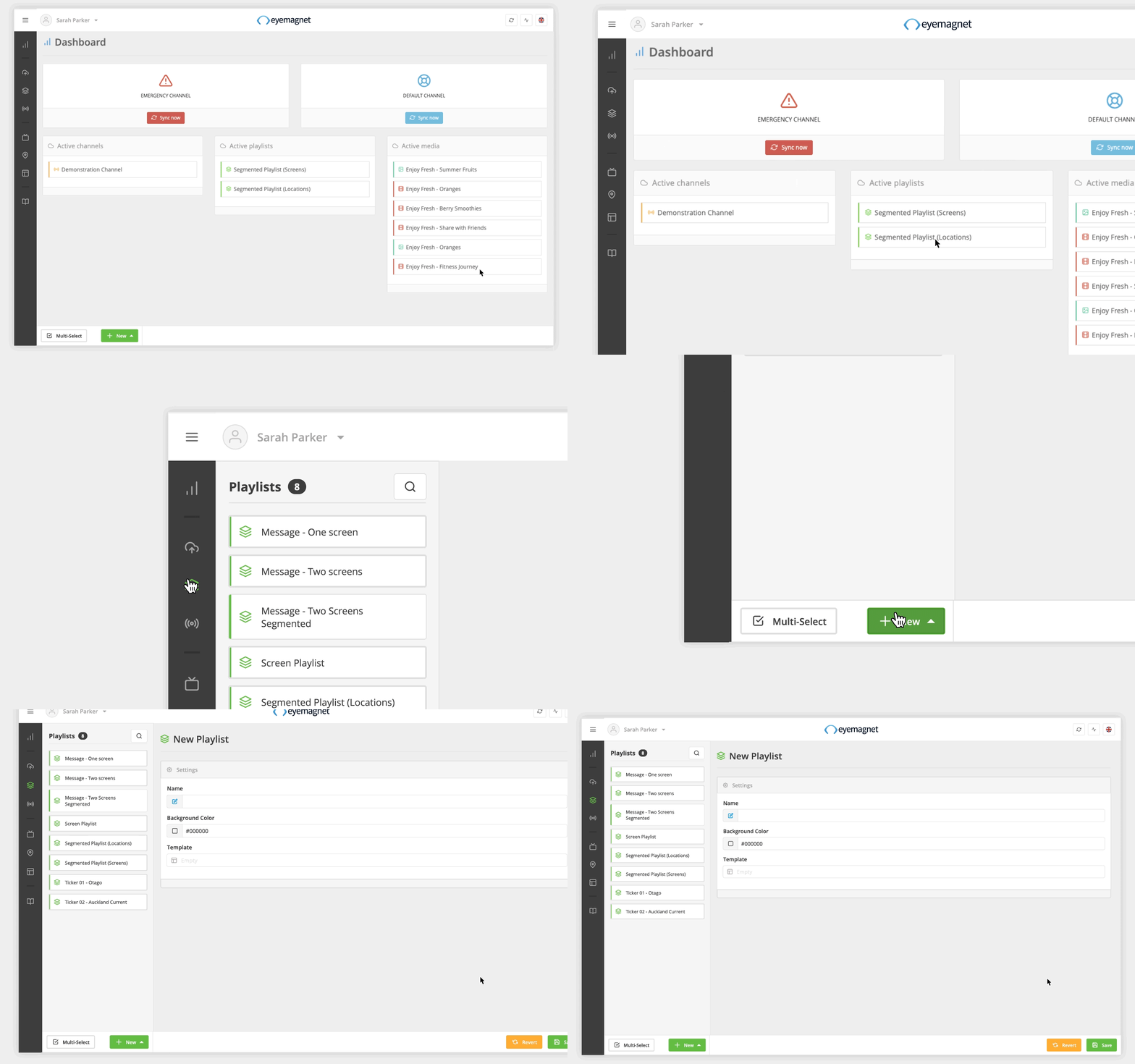
For more detail → Create and Manage Playlists
Setting up a channel
Channels control when your playlists play and for how long. This is where you build your schedule.
Go to Channels in the left-hand panel and click New. Give your channel a useful and descriptive name.
A channel can hold one playlist or many. If you've got multiple playlists - say, a lunch promotion and a brand awareness loop - you add them all to the same channel and choose how they share screen time. You can rotate by time, by number of items, or set a share of voice percentage (e.g. 70% promotions, 30% brand content). You'll find these options under the Strategy setting when you add playlists to your channel.
The real power is in the scheduling. Every playlist in a channel can have its own start and end dates, times of day, and days of the week. Want a Wednesday lunch special that only plays 11am to 2pm through May? Set it once and forget it - the CMS handles the rest.
Eco Mode is worth knowing about too. If there's a gap in your schedule - say nothing's set to play overnight - the screen will turn itself off and back on when the next content is due. Saves power, extends screen life, and you don't have to think about it.
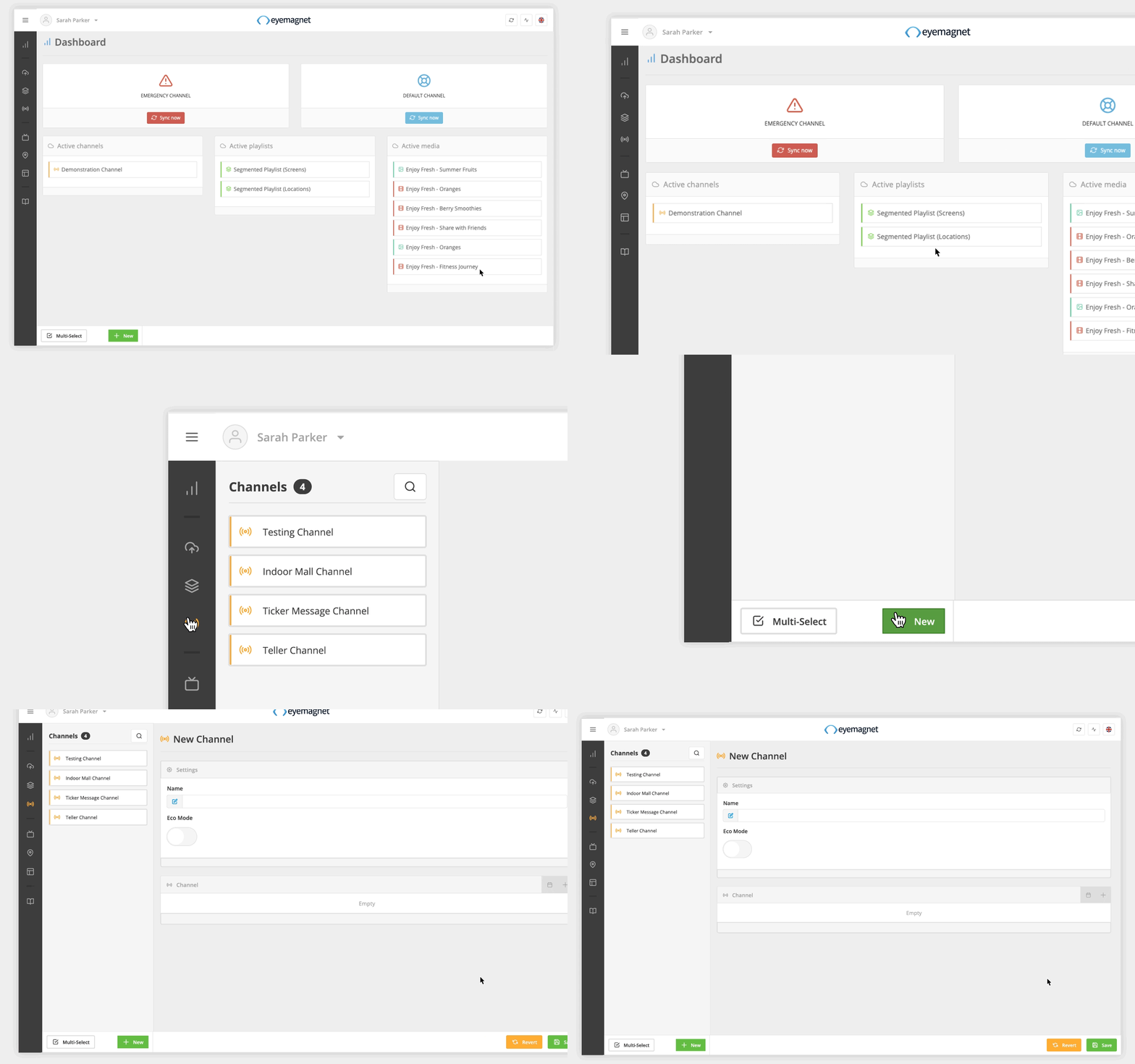
For more detail → Create and manage Channels
Assigning a channel to a screen
The last connection. Your media is uploaded, your playlists are built, your channel is scheduled. Now you just point it at a screen.
Assign your channel to the screen it should play on, and your content goes live. If your setup changes down the track - new screens, different locations - you can reassign channels without rebuilding anything.
For more detail → Configure Screen Settings
Tips for great screen content
Before you upload, a few things that make a real difference to how your content looks and performs on screen.
Keep it short. You've got seconds to grab attention, not minutes. Aim for 15 to 30 seconds per content item.
Quality matters. Your screens are only as good as the content on them. Double-check the resolution and quality of your images and videos before uploading - blurry or pixelated content stands out for all the wrong reasons.
Keep file sizes down. Larger files take longer to upload and download to your screens. Compress where you can without sacrificing quality.
Add movement. Static content is easy to ignore. Even simple animations or transitions can make your promotions more eye-catching.
Check your specs. Make sure your content matches your screen's resolution and orientation (landscape or portrait) before exporting. Your Eyemagnet support team can confirm your screen specs if you're not sure.