
To upload an image or video to the Media Library, follow these steps:
- Navigate to the Media page located in the sidebar menu.
- From here, you can:
- Drag and drop your Media Items onto the Upload field.
- Click on the Upload field and select your Media Items from the computer's file browser.
- Your Media Items will automatically start uploading to the Media Library.
- Once the upload is complete, the Media Items will become available within your Media Library.
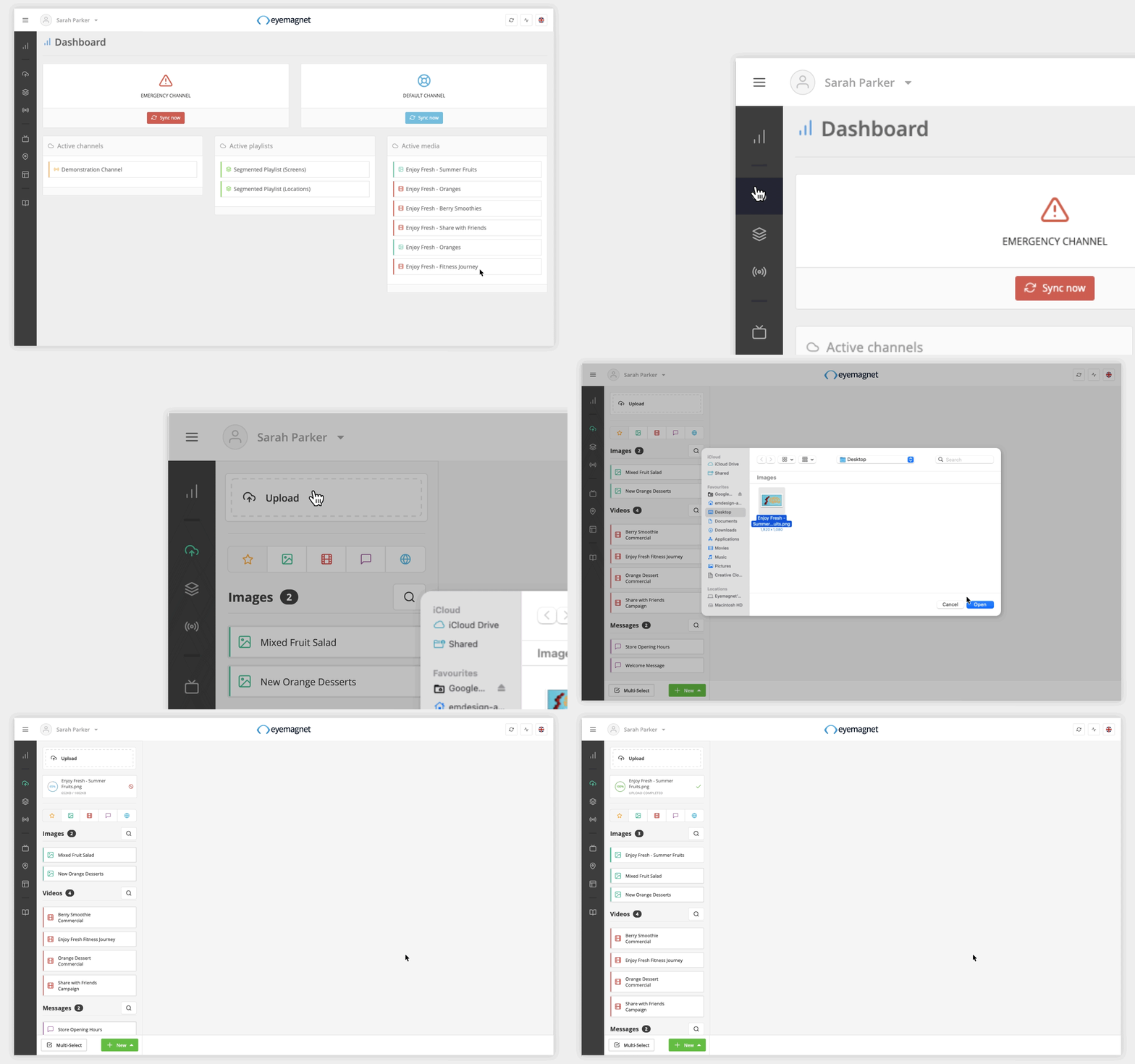
When a Media Item is uploaded, a status indicator will display next to each file uploaded and show the status of the file upload.
An upload in progress can be stopped by clicking on the Cancel icon.
If an error occurs, click on the Retry icon that appears. If the error persists and your content won't upload, email support@eyemagnet.com.
Other media types
The Eyemagnet CMS can also configure a website and message Media Items as well.
For more information, see Configure Websites and Configure Messages.