
Navigate the Device List
When opening the Device List page, you will be presented with a table of all devices on your client network.
The Device List table is separated into various sections, such as:
- Search Bar: is located on the top right-hand side of the page and allows you to filter your results to a specific dataset.
- Table Filters: feature can be found by selecting column names.
- Status: indicates whether a device is currently reporting as online, offline or a spare Device.
- Location: indicates which location has been assigned to the Device.
- Type: the devices are all categorised into which Device Type they are - for example, a Server or Display.
- Last Seen: displays the last reported online time.
- Pagination: is located at the bottom right-hand side of the page and allows you to access more device data.
- Screenshot View: is located to the right of the Search Bar and changes the format of the device data shown below.
- Download CSV: can be found in the top right-hand corner of the screen and downloads all of the data in your client network.
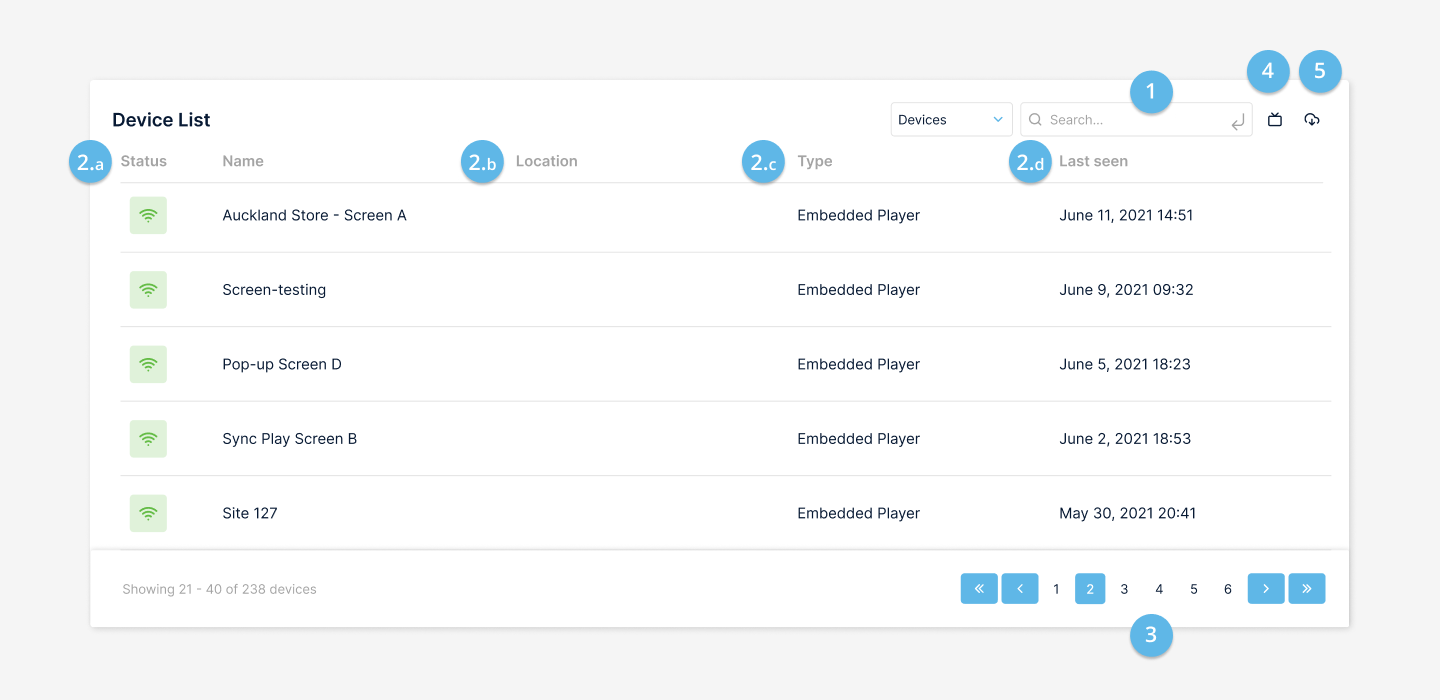
Pagination only appears if there are 20 or more results.
The Reporting Tool re-authenticates every six hours. If the device has been online for an extended amount of time, the Last Seen column will show the time that it was last authenticated.
Device Search Bar
To search for a Device, follow these steps:
- Click the Search Bar in the top, right-hand corner and begin typing. You may search using a Device's name or Location which will filter the results to provide you with any results containing your search.
- Once you have typed out your search, press the Enter/Return Key to finalise the results.

The page will show 20 results at a single time, and if your search has returned more than 20 results, you may access the rest of the search by navigating to the bottom right-hand corner and selecting a different page.
Table Filters
To filter items in the Device List, follow these steps:
- Navigate to the name of the column you would like to filter.
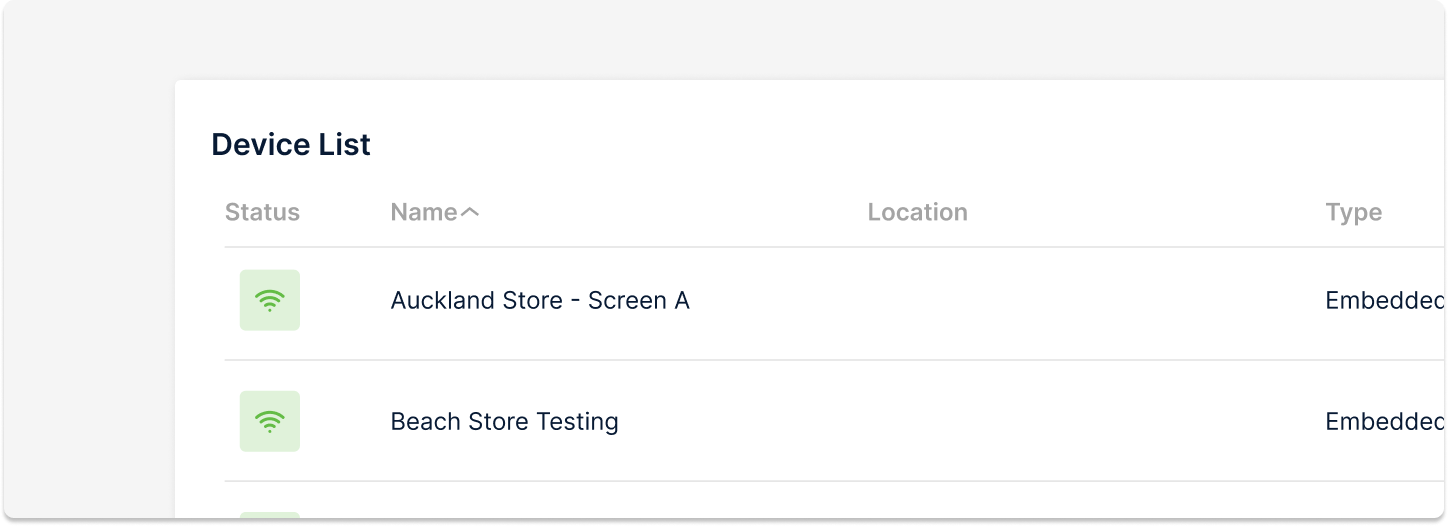
- Click the Column Label once. This will filter ascending order and a light grey upward-facing arrow will appear next to the column name.
- To filter the result in descending order, click the Column Label a second time and a light grey downward-facing arrow will appear.
Screenshot view
The screenshot view is a visual way to display what is currently playing on your Screens or Devices in the Device List.
Change to the screenshot view
To change to the screenshot view, follow these steps:
- Click on the Television icon in the top right-hand corner of the Device List.
- The Device List will now display your Devices as screenshots.
- To go back to the List view, click on the List icon in the top right-hand corner of the Device List.
- The Device List will now display as a list.
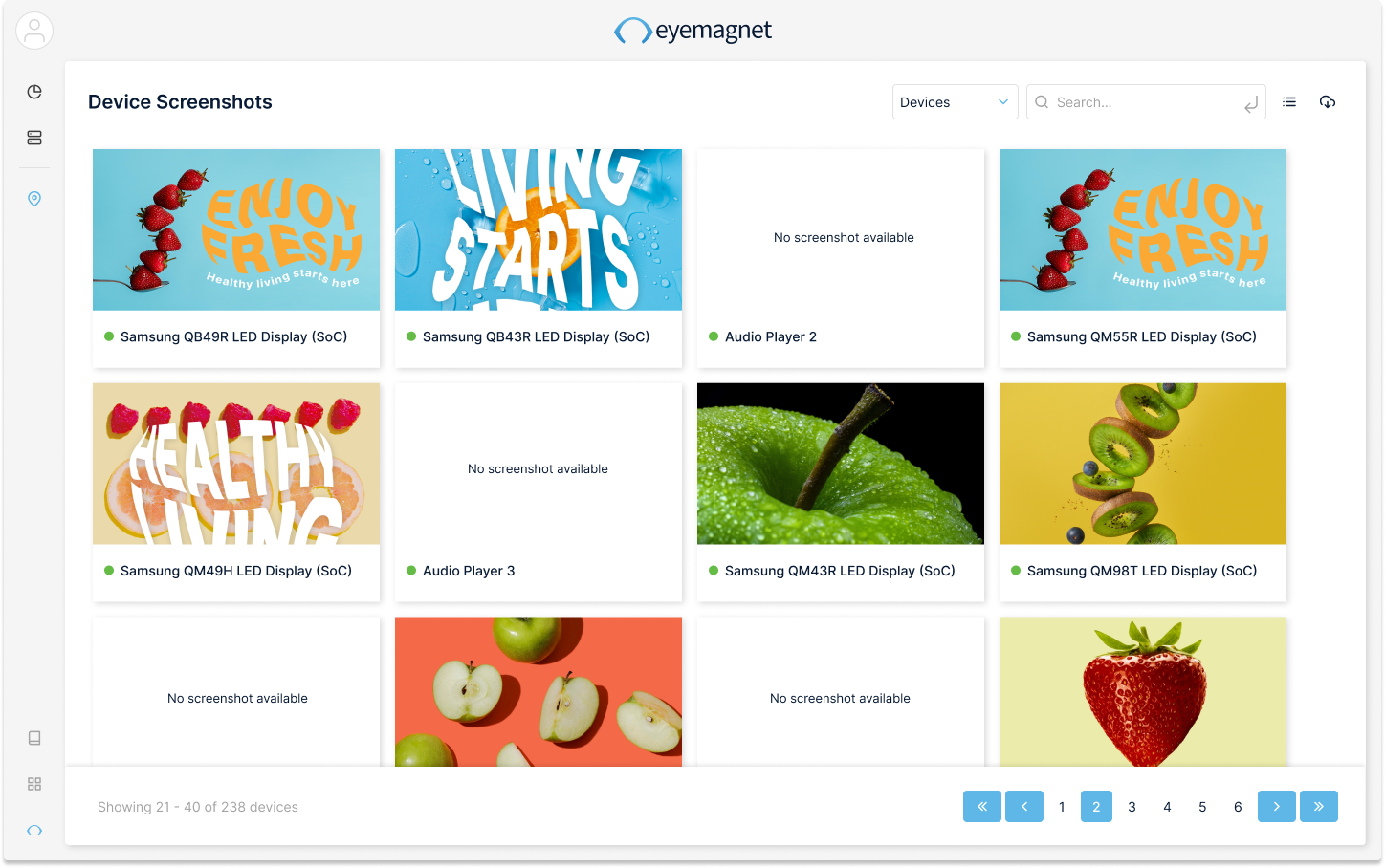
When viewing the Device list in screenshot view, there is a limit of 20 screens shown per page. You can navigate through the pages using the buttons in the bottom right-hand corner of the panel.
Like the Device list, you may use the search bar to filter search results.
Download a CSV file
To download a CSV of the Device list, follow these steps:
- Navigate to the Device List page.
- Click on the Download icon in the top right-hand corner of the Device List.
- A CSV file will download to your computer's file browser.
This will download all the data that the reporting tool has collected about the Devices shown, including data that is not shown on the Device list page.

Using the search bar, you may filter your search and download only data that applies to your search.