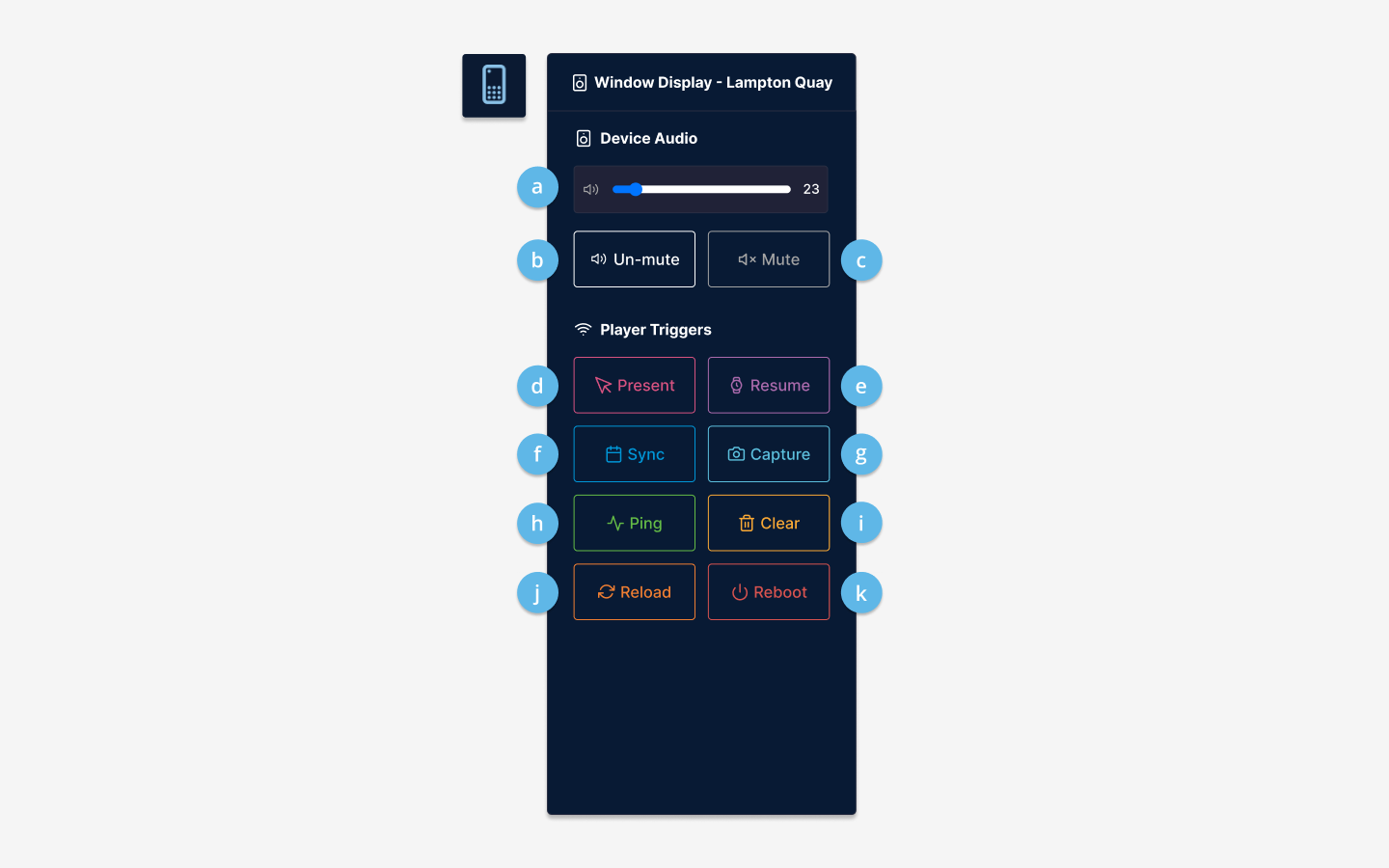
Remote App Triage menu
The Triage menu can be opened from a Channel or Playlist Schedule page.
Open the Triage menu
To open the Triage from a Channel page, follow these steps:
- Select a Screen or Device from the Home page.
- Next, click on the Remote icon at the top right-hand side of the Channel Grid.
- The Triage menu will open up and you'll be able to control the display.
To open the Triage from a Playlist Schedule page, follow these steps:
- Select a Channel from the Channels page.
- Next, click on the Remote icon at the top right-hand side of the Playlist Schedule Grid.
- The Triage menu will open up and you'll be able to control the display.
Triage menu options
Once the Triage menu is open, you can control a Display via the basic functions listed below:-
- Volume Slider: Controls the audio level of the Display.
- Un-mute: Un-mutes the audio on the Display.
- Mute: Mutes the audio on the Display.
- Present: Turns presentation mode on.
- Resume: Turns presentation mode off and continues to play the content.
- Sync: Pulls the latest schedule set up to play on the Display.
- Capture: Captures a screenshot of what is currently playing and sends it to the Reporting Tool.
- Ping: Sends a ping to the Device. In return, you should receive a ping to let you know the Display is connected.
- Clear: Removes all Schedules set up on the Display.
- Reload: Reinstalls the Eyemagnet SoC app on the Display. This pulls any latest updates of the App.
- Reboot: Reboots the Display.