
Search for Locations
To search for a particular Location, follow these steps:
- Click on the Search icon at the top of the Location Library. This will display three free-text fields with the ability to search for Locations by name, Location and comments.
- Start typing into one of the fields. The Location Library will dynamically update to display the relevant Location.
- Next, you can enhance your search by clicking on the Parameter icon next to the name field.
- Then, select one of the five options:
- Contains: this option will only display items that include the text you have written.
- Matches exactly: this option will only display items that match exactly the text you have written.
- Begins with: this option will only display items that begin with the text you have written.
- Ends with: this option will only display items that end with the text you have written.
- Excludes: this option will only display items that do not include the text you have written.
- The Location Library will now be updated with the parameters you have set.
- To reset the Location Library, simply remove the text you have written.
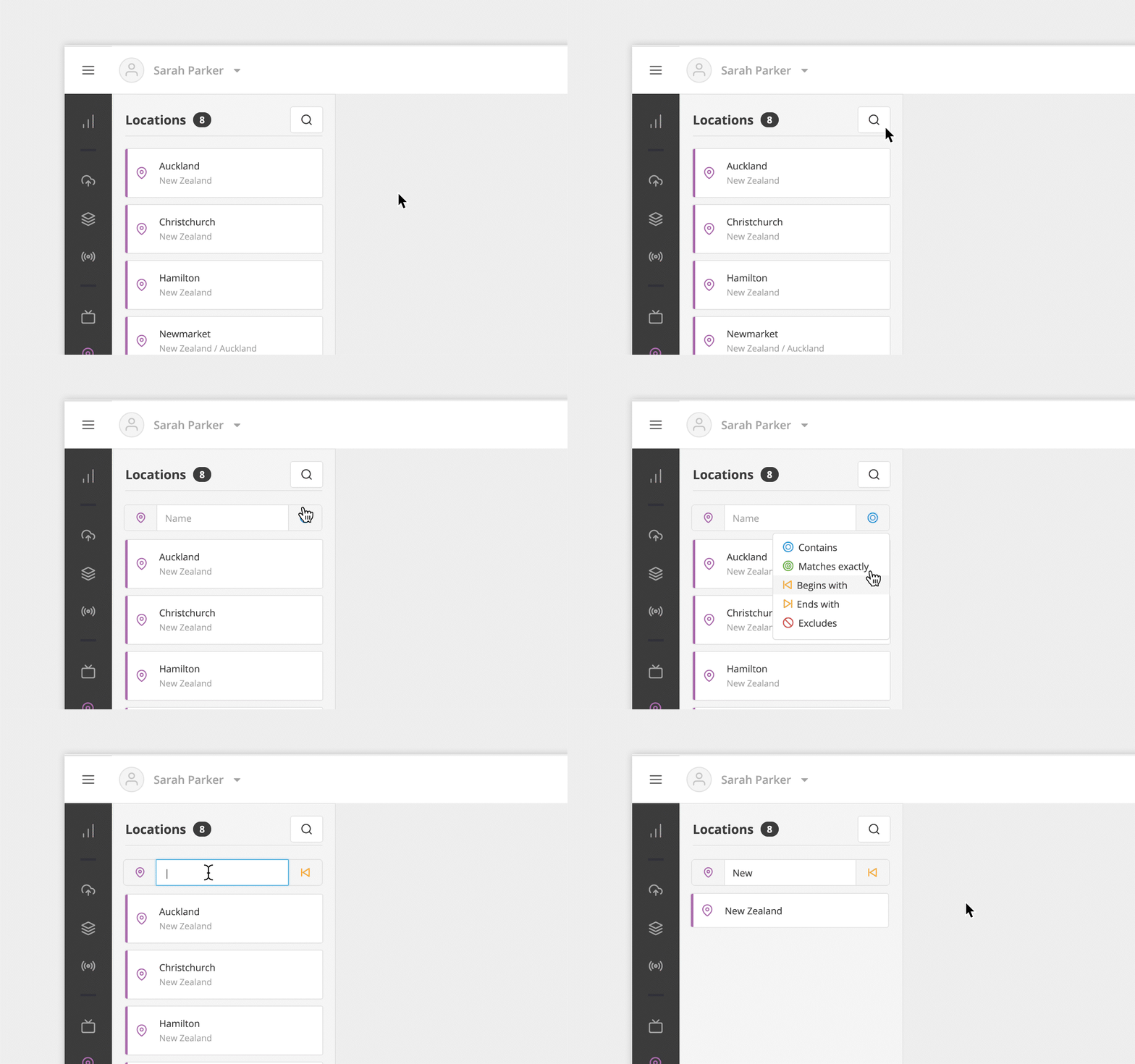
By default, the search fields are set to the Contains parameter.