
Search for Media Items
To search for a Media Item, follow these steps:
- Click on the Search icon in any of the Media Type sections. This will display two free-text fields with the ability to search for files by name or comments added to the Media Items.
- Start typing into one of the fields. The Media Library will dynamically update to display the relevant media items.
- Next, you can enhance your search by clicking on the Parameter icon next to the Name field.
- Then, select one of the five options:
- Contains: this option will only display items that include the text you have written.
- Matches exactly: this option will only display items that match exactly the text you have written.
- Begins with: this option will only display items that begin with the text you have written.
- Ends with: this option will only display items that end with the text you have written.
- Excludes: this option will only display items that do not include the text you have written.
- The Media Library will now be updated with the parameters you have set.
- To reset the Media Library, simply remove the text you have written.
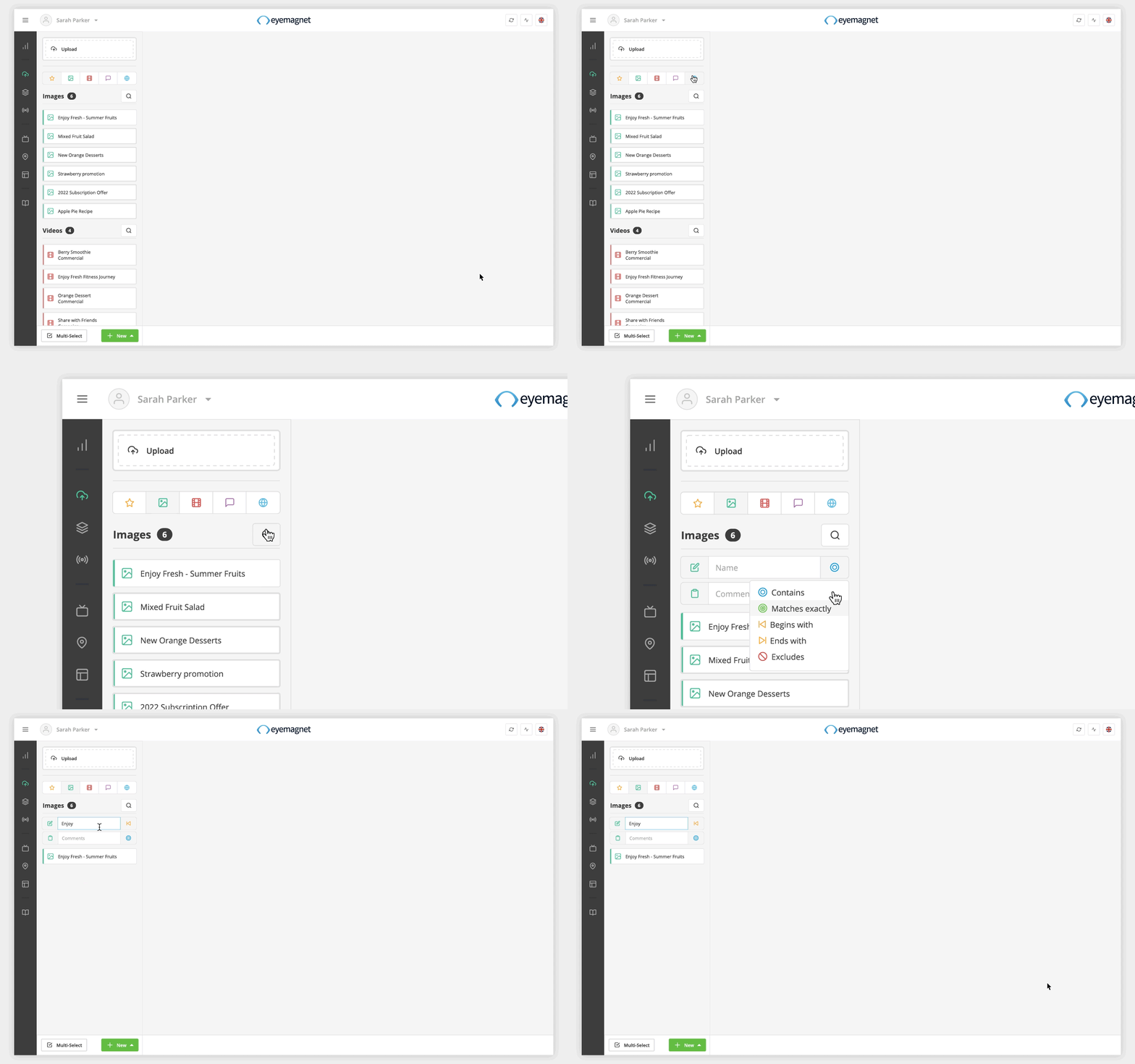
By default, the search fields are set to the Contains parameter.
Filter Media Types
The Media Library is split into various sections based on media types; such as images, videos, messages and websites. This makes it easy to help you find the media items you want.
To filter through the different Media Types, simply click on the relevant Media icon and the Library will automatically update with the selected Media Type.

By default, the Media Library will be set to All Media and is displayed by the star icon.