
Location Hierarchy
Location Hierarchy is a great way to dynamically schedule Media Items to play in specific Locations across your digital signage network.
To use Location Hierarchy, you’ll first need to set up Parent and Child Locations, and then assign Screens and Media to those Locations.
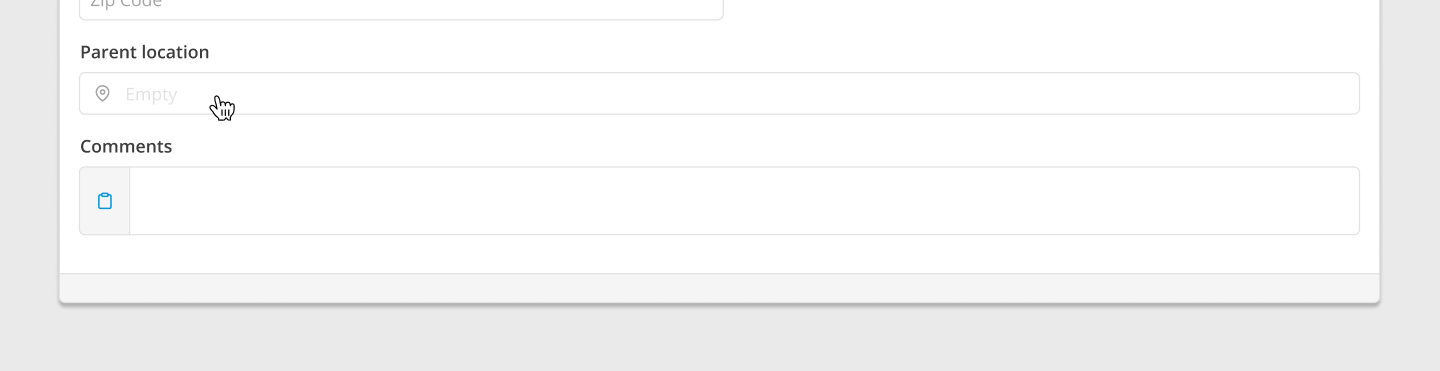
Before going ahead with setting up Parent and Child Locations, please note: Child Locations are NOT compulsory.
Set up a Parent and Child Location
To set up a Parent and Child Location, follow these steps:
- First, create a Location entry as a Parent Location. For example, the Auckland region.
- Next, create a Location entry as a Child Location. For example, a store in the Auckland region.
- Open the Child Location and click on the Parent Location field to select the Parent Location you previously created.
- Click the Save button.
- Your Location Hierarchy will now be set up.
If a Parent Location has been set up, it will be displayed underneath an entry in the Location Library.
Assign Screens to a Location
To assign Screens to a Location, follow these steps:
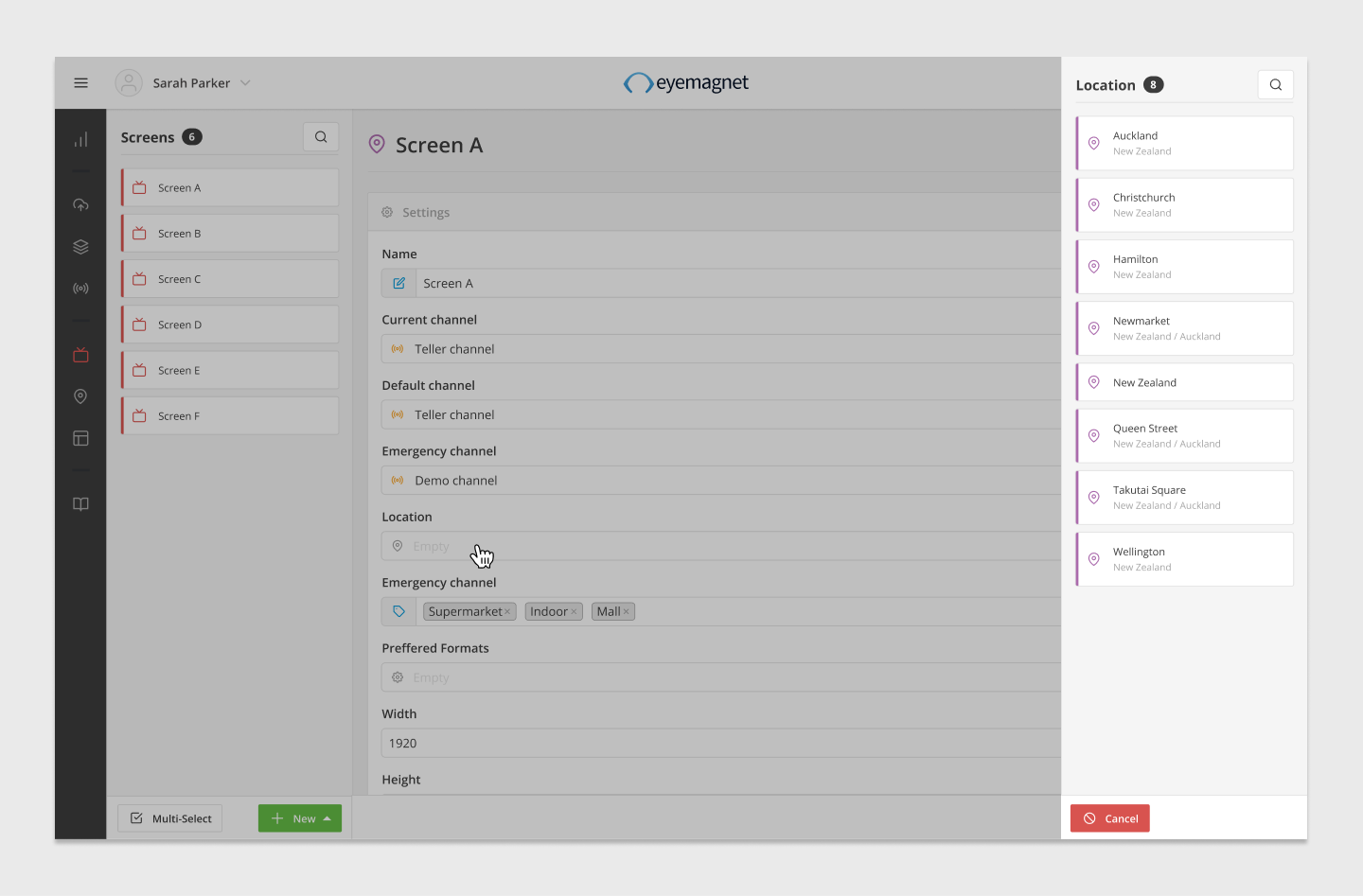
- On the Screens page, click on a Screen to open the Settings panel.
- Scroll down and click on the Locations field.
- Select one or more Locations from the Location Library.
- Click the Save button.
- Your Screen will now be assigned to the selected Location/s.
Restrict Playlist entries to a Location
To restrict Playlist entries to a Location, follow these steps:
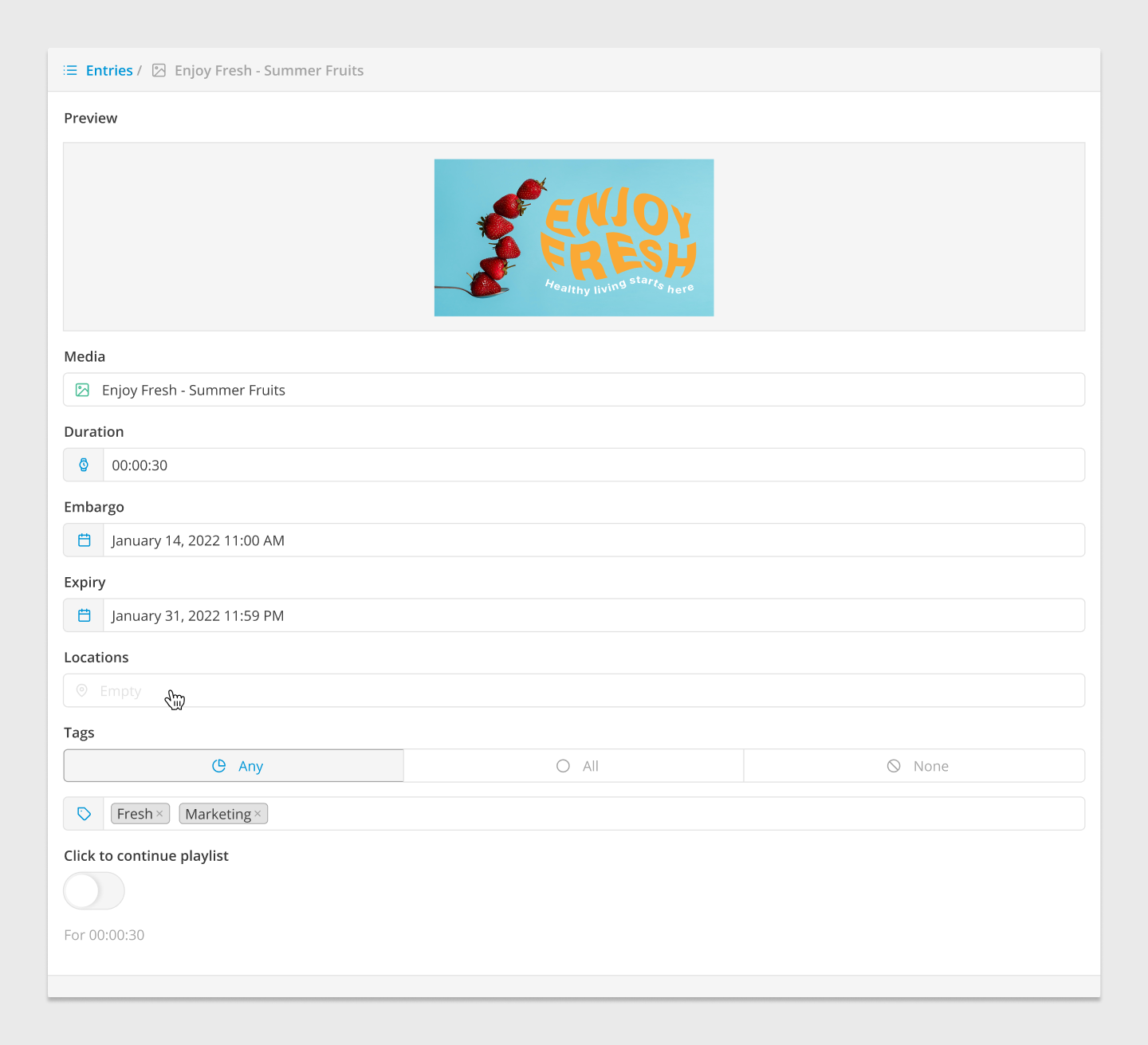
- When adding Media to a Playlist, click on the Media Item to open the Configuration Settings.
- Scroll down and click on the Locations field.
- Select one or more Locations from the Location Library.
- Click the Save button.
- The Media Item will now be assigned to the selected Location/s.
Once a Location has been created and assigned to your Screens and Media Items, then your Media will start playing in either one or more Locations; depending on which options you’ve chosen.
When selecting a Location, please keep in mind that Parent Locations automatically cover the Child Locations.