How to Preview Live Content
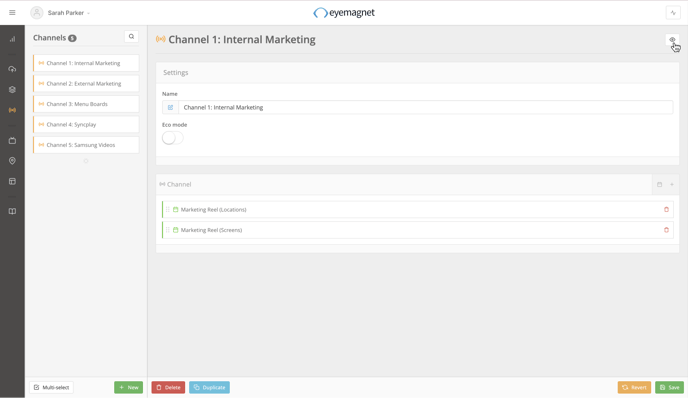
To preview live content that is playing on a screen, follow these steps:
- Navigate to the Screens page.
- Click on a Screen in the Screen Library to open up the Settings panel.
- Click the Eye icon in the top right-hand corner.
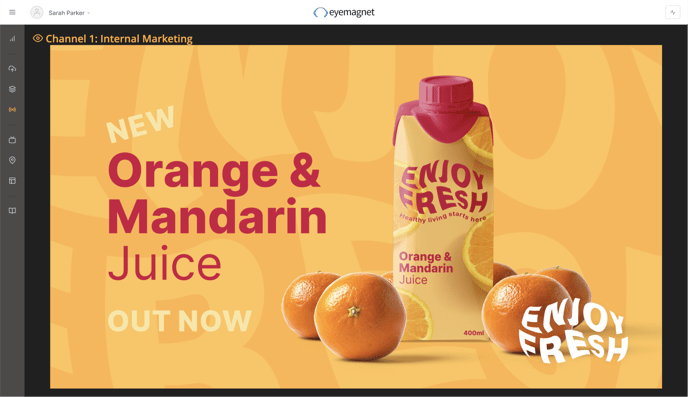
- A live preview panel will appear previewing live content for the selected screen.
- Click the Eye icon again to close the preview.
How to Preview Scheduled Content in a Playlist
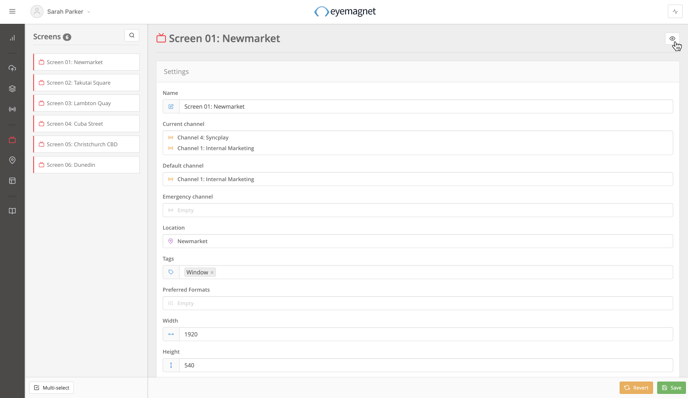
To preview content that has been scheduled in a playlist, follow these steps:
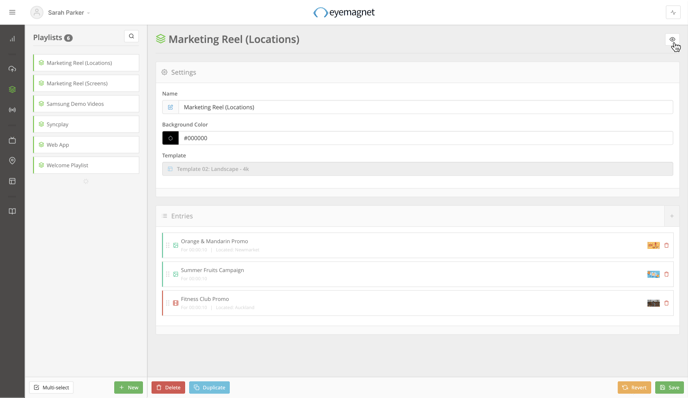
- Navigate to the Playlist page.
- Click on a Playlist in the Playlist Library to open up the Settings panel.
- Click the Eye icon in the top right-hand corner.
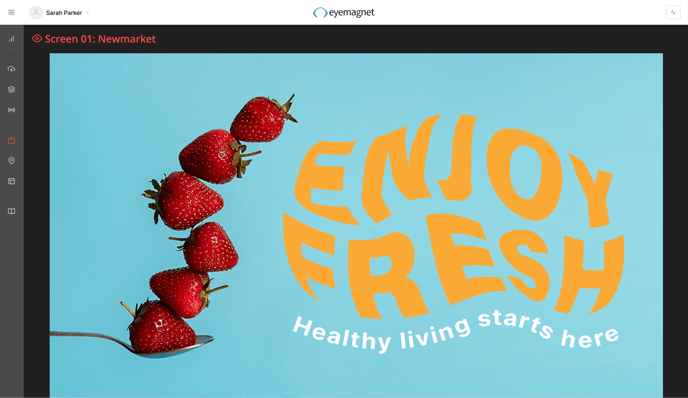
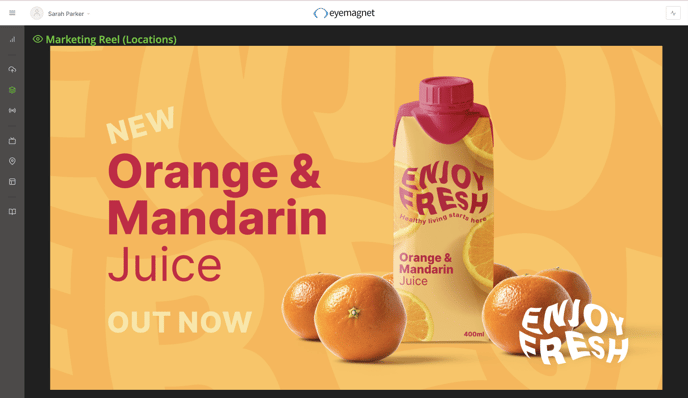
- A live preview panel will appear previewing all of the content that has been scheduled in the selected Playlist. Content will play for the durations that have been scheduled.
- Click the Eye icon again to close the preview.
How to Preview Scheduled Playlists in a Channel
To preview scheduled playlists in a channel, follow these steps:
- Navigate to the Channel page.
- Click on a Channel in the Channel Library to open up the Settings panel.
- Click the Eye icon in the top right-hand corner.
- A preview panel will appear previewing all of the content that has been scheduled in the selected Channel. Content will play for the durations that have been scheduled.
- Click the Eye icon again to close the preview.