---
title: Eco-Mode
description: The following article explains Eco-Mode, a CMS power-saving feature that helps prevent issues such as screen burn. It provides guidance on activating and deactivating Eco-Mode within the CMS.
---
[Skip to content](https://support.eyemagnet.com/cms/eco-mode#main-content)
English
Show submenu for translations
[Customer portal](https://support.eyemagnet.com/tickets?hsLang=en)

- [Knowledge Base Home](https://support.eyemagnet.com/)
Open main navigation
Close main navigation
- [Knowledge Base Home](https://support.eyemagnet.com/)
- English
Show submenu for translations
- [Customer portal](https://support.eyemagnet.com/tickets)
- [eyemagnet.com](https://www.eyemagnet.com/)
[eyemagnet.com](https://www.eyemagnet.com/)
Hi, how can we help you?
- There are no suggestions because the search field is empty.
1. [Eyemagnet Knowledge Base](https://support.eyemagnet.com/?hsLang=en)
2. [CMS](https://support.eyemagnet.com/cms?hsLang=en)
3. [Channels](https://support.eyemagnet.com/cms?hsLang=en#channels)
# Eco-Mode
## The following article explains Eco-Mode, a CMS power-saving feature that helps prevent issues such as screen burn. It provides guidance on activating and deactivating Eco-Mode within the CMS.
**⚠️ Before starting to use this feature, please note:** This feature requires proper screen configuration. If you need further assistance with the Eco-Mode set-up, please contact [support@eyemagnet.com](mailto:support@eyemagnet.com).
### What is Eco-Mode?
**Eco-Mode** is a power-saving feature in the CMS. Activating Eco-Mode in a channel instructs a device or screen to enter standby mode when there's no scheduled content left. This feature is useful to enable to prevent issues like power consumption and screen burn.
### **What is screen burn?**
Screen burn, also known as ghosting or burn-in, is a permanent discolouration of areas on an electronic display, such as a computer monitor or television screen, caused by the prolonged display of a static image or text.
Essentially, it's caused by certain pixels being used more frequently than others, such as those used to display the toolbar on a computer screen. Over time, these pixels can degrade faster than the rest of the screen, leading to persistent lines or patches of colour.
### **Why should I turn Eco-Mode on?**
Turning on Eco-Mode brings several benefits:
- It reduces power consumption, which not only lowers energy costs but also contributes to a greener environment.
- It helps extend the lifespan of your screens by preventing unnecessary wear and tear, including screen burn. This leads to fewer replacements, saving costs and reducing electronic waste. Standby mode also ensures that the screens are not constantly running when they're not required, thus preserving their optimum performance for when they are needed.
- It prevents stores and outlets from manually using the remote and potentially changing the display settings, which could lead to further issues.
---
### **CMS Setup**
### **How to Activate Eco-Mode**
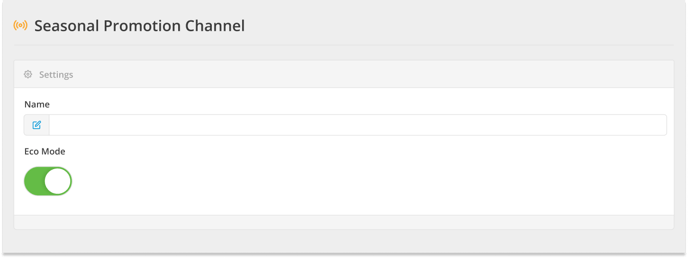
To activate **Eco-Mode**, follow these steps:
1. Select a **Channel** from the Channel Library.
2. Toggle the Eco-Mode switch to **on**.
3. Click the **Save** button.
4. Eco-Mode will now be activated for the selected Channel.
### **How to turn Eco-Mode Off**
To turn **Eco-Mode** off, follow these steps:
1. Open a **Channel** from the Channel Library.
2. Switch the Eco-Mode toggle to **off**.
3. Click the **Save** button.
4. Eco-Mode has now been turned off for the selected Channel.
---
### Screen Setup
#### **Samsung Screens:**
For Samsung screens purchased through Eyemagnet, these will already be configured during the provisioning process.
#### **LG Screens & Eyemagnet Media Players:**
For LG screens using WebOS, please make sure the SIMPLINK settings are turned on. This will ensure that the Eyemagnet media player can turn the screen back on from Standby mode.
To set up the LG SIMPLINK Settings, follow the instructions below
#### **How to turn on the LG SIMPLINK Setting:**
1. From the **General** menu, choose **Advanced Settings.**
2. Select **SIMPLINK Setup.**
3. Turn General / Advanced setting **On** with the toggle switch.
4. Set **Standby** to **Receive Only.**
5. Your screen will now be configured. and you can return to the correct HDMI source.
**For a full factory reset watch the video below.**
[](https://www.eyemagnet.com/)
©2026 Eyemagnet Limited. All Rights Reserved.