Create a Playlist
To create a Playlist, follow these steps:
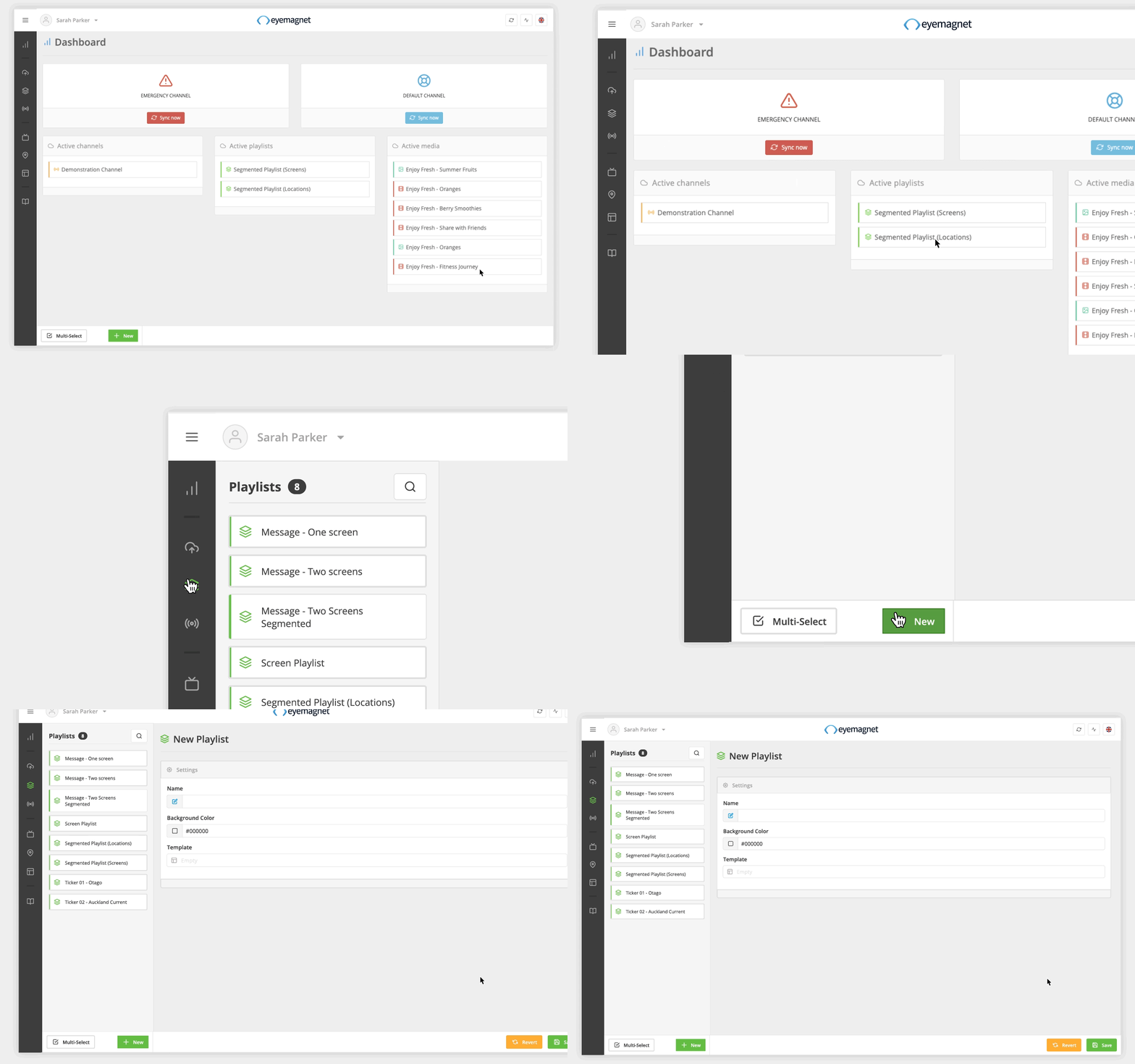
- Click on the + New button at the bottom of the Playlist Library.
- A new panel will open and will display the Playlist Settings panel.
- Give your Playlist a name.
-
Set a Background Colour (if required).
- Click on the Template field and assign a Template from the Template Library.
- Click on the Save button.
- Your Playlist will now appear in the Playlist Library, and you’ll be able to add your Media Items.
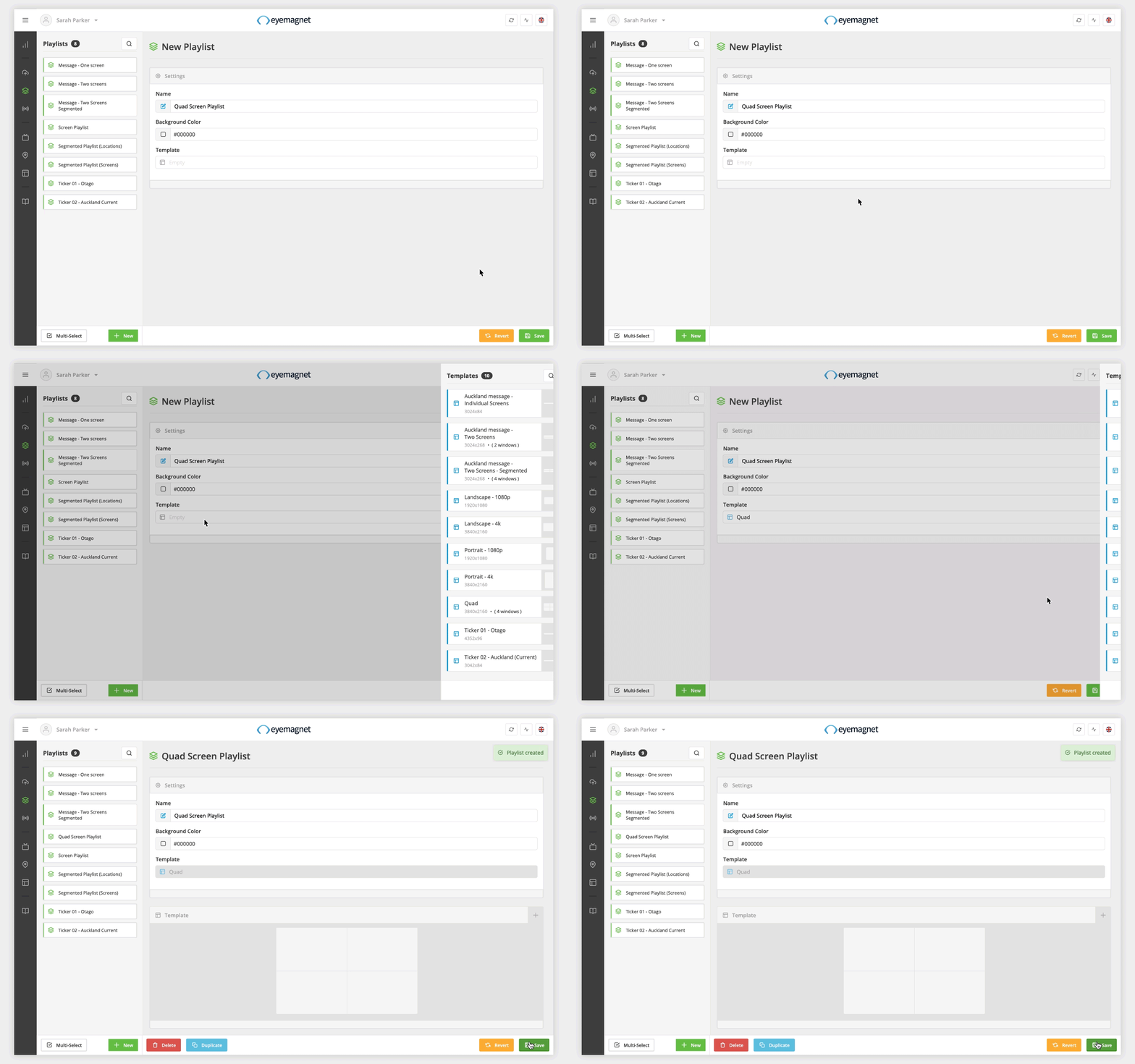
Once a Playlist has been saved with your chosen Template, it cannot be changed. If you would like a different Template, you’ll need to create a new Playlist.
Add Media Items to a Playlist
To add a Media Item to a Playlist, follow these steps:
- Click the + icon on the Playlist entries panel.
- Select a Media Item from the Media Library.
- Your Media Item has now been added to your Playlist.
- To rearrange the Media Item, click and drag the Move icon on the left-hand side of the Playlist entry.
- To remove the Media Item, click on the Trash icon on the right-hand side of the Playlist entry.
- To configure the Media Item’s Settings, click on the Playlist entry.
- In the Media Item Settings panel, you can:
- Replace the Media Item by clicking on the Media field and selecting a new Media Item from the Media Library.
- Add a Duration.
- Add an Embargo and Expiry.
- Assign a Location to the Media Item.
- Select a Tagging option and assign Tags to the Media Item.
- To go back to the Playlist entries panel, click on the word Entries at the top of the Media Item Settings panel.
- Once you’ve finished editing your Playlist, click the Save button.
- Your Playlist will now be updated with the latest changes.
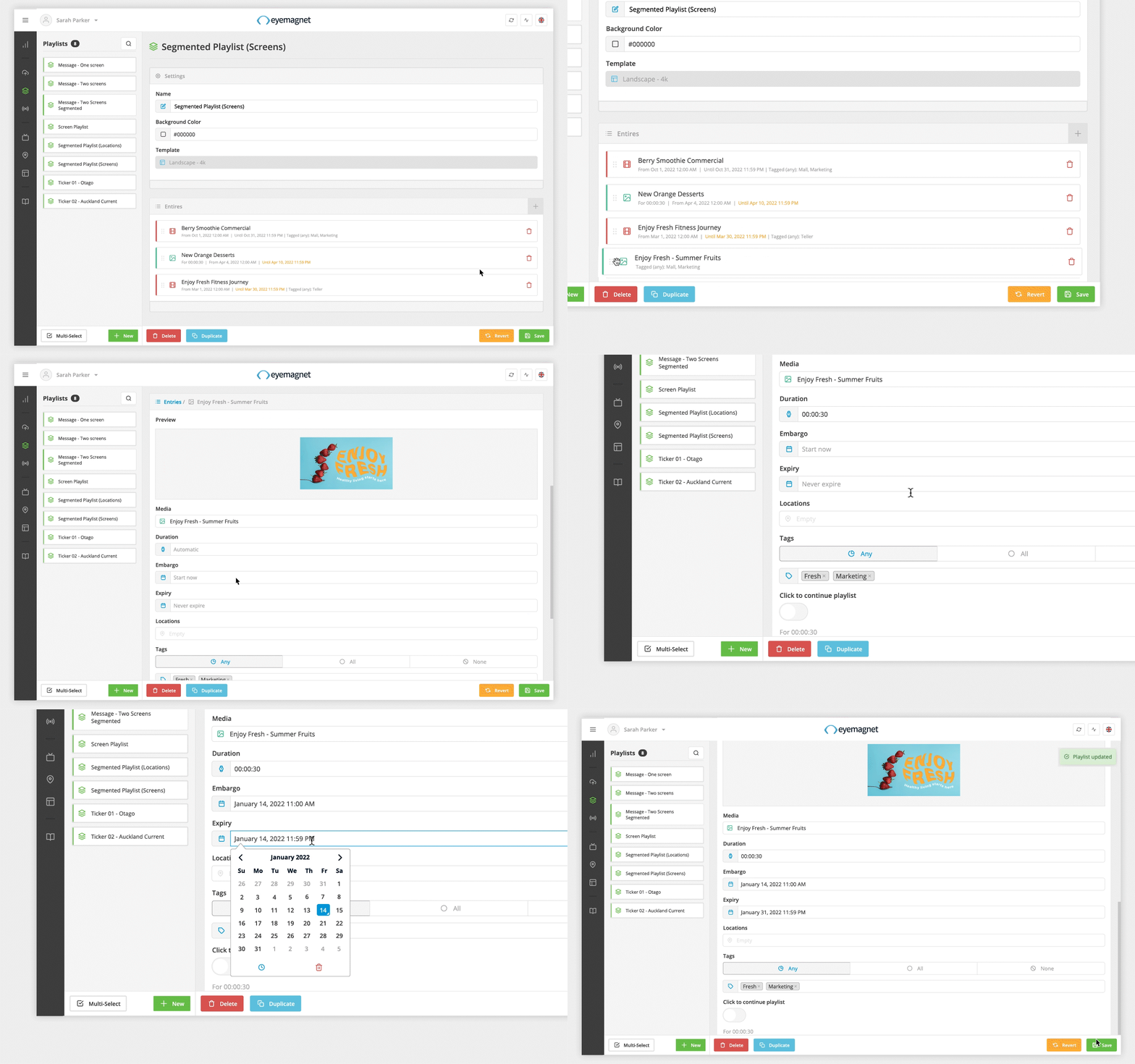
Media Items cannot be added to a Playlist until a Template is selected and the Playlist has been saved.
Edit a Playlist
To edit a Playlist, follow these steps:
- Click on a Playlist to open the Settings panel.
- Rename your Playlist.
- Change the Background Colour (if required).
- Make changes to the Playlist entries.
- Once you’ve finished editing your Playlist, click the Save button or to cancel the changes, click the Revert button.
- Your Playlist will now be updated with the latest changes.
Delete a Playlist
To delete a Playlist, follow these steps:
- Click on a Playlist to open the Settings panel.
- Click the Delete button at the bottom left-hand corner.
- Your Playlist will now be deleted.
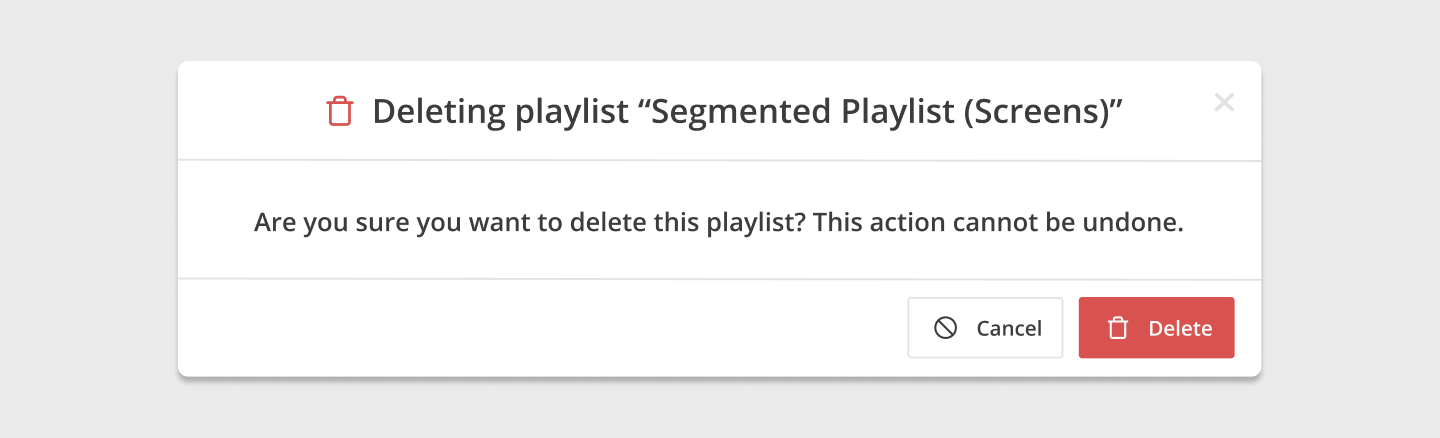
If your Playlist is in use, it will not be deleted. The Playlist will need to be removed from all channels to be able to delete it.
Duplicate a Playlist
To duplicate a Playlist, follow these steps:
- Click on a Playlist to open the Settings panel.
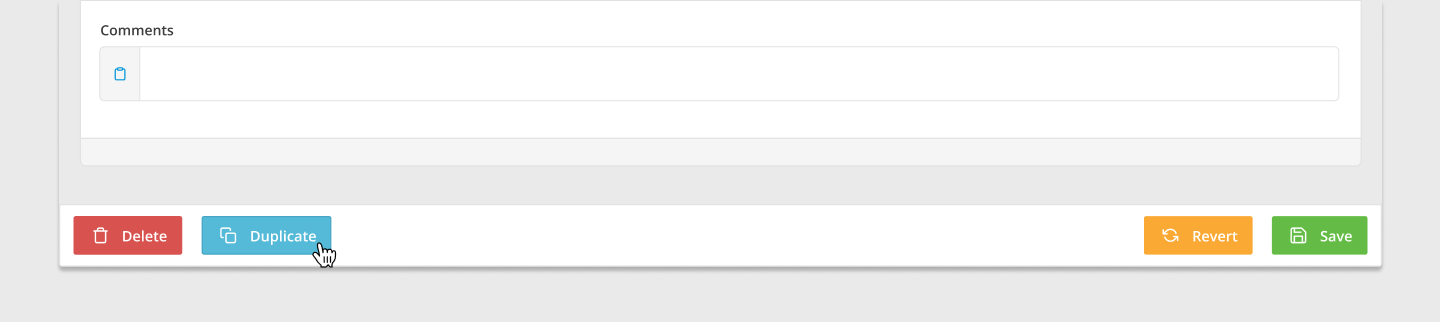
- Click the Duplicate button at the bottom left-hand corner.
- A new Playlist entry will be created.
- Rename your Playlist.
- Make changes to the Playlist entries.
- Once you’ve finished editing your Playlist, click the Save button or to cancel the changes, click the Revert button.
- Your Playlist will now be added to the Playlist Library as a new entry.