
Add a website
To add a website to the Media Library, follow these steps:
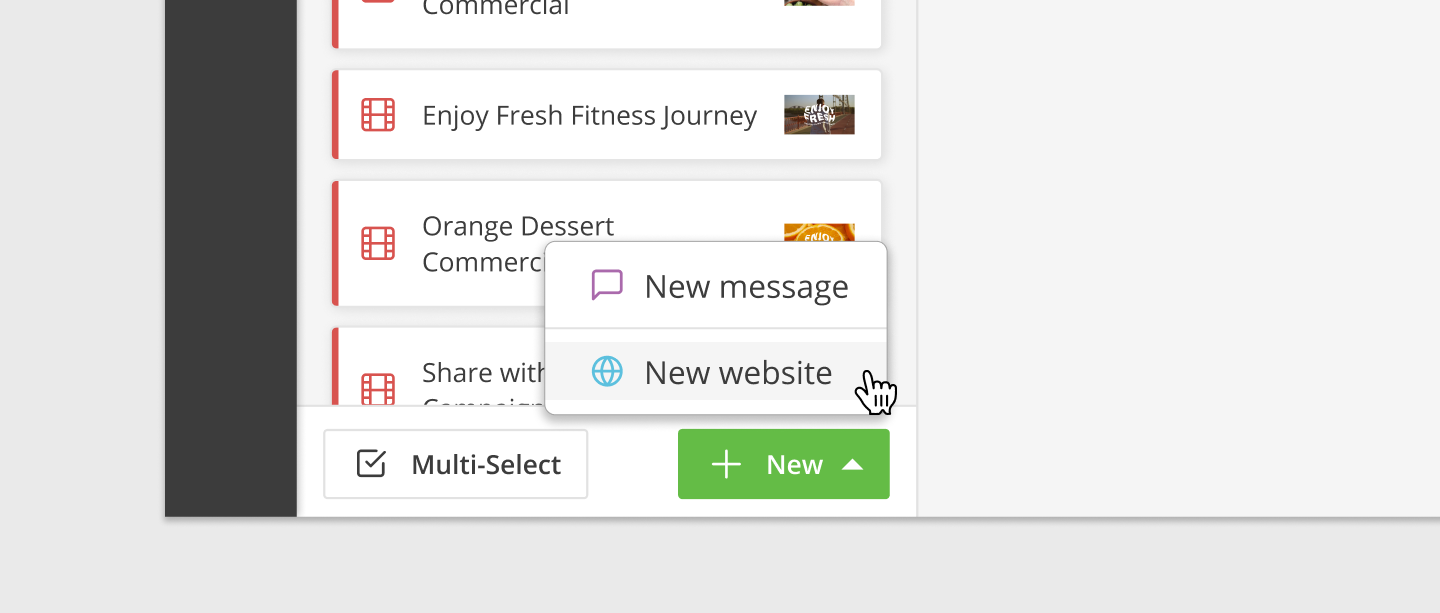
- On the Media page, click on the + New button at the bottom of the Media Library.
- Then select New Website.
- Next, simply give the website a name and add the website’s URL.
- Click the Save button.
- Your website will now appear in the Media Library and can be scheduled the same as any other Media type.
When you add a website to the Media Library it is automatically added to an iFrame. If your website can’t be added to an iFrame due to security restrictions, replace https:// with browser:// in your URL.
For Example, browser://www.dashboard.html
Websites with required logins, splash screens or other pop-ups may not display in an ideal fashion and may require support from Eyemagnet.
Duplicate a website
To duplicate a website, follow these steps:
- Select a Website from the Media Library.
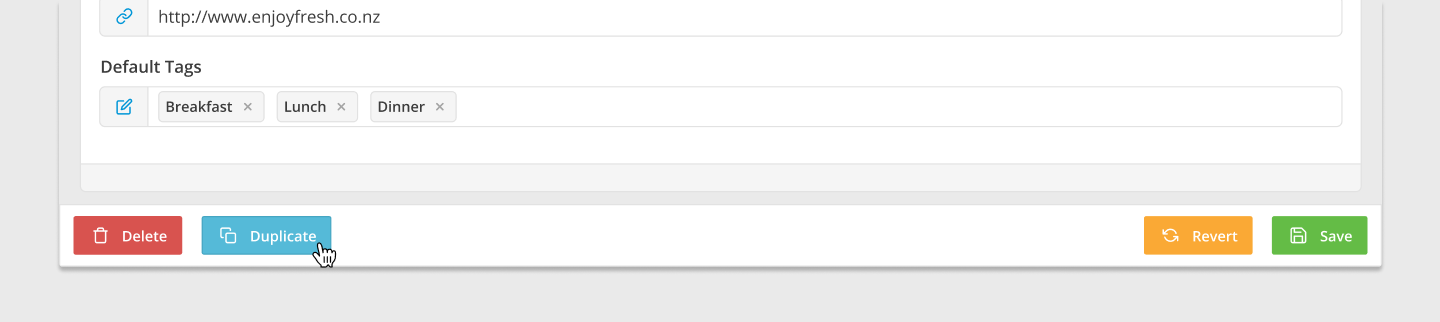
- Click the Duplicate button at the bottom left-hand side of the Settings.
- A duplicate website will be created.
- Rename the website, make any changes to the URL and click the Save button.
- The new website will now appear in the Media Library.
Delete a website
To delete a website, follow these steps:
- Select a Website from the Media Library.
- Click the Delete button at the bottom left-hand side of the Settings.
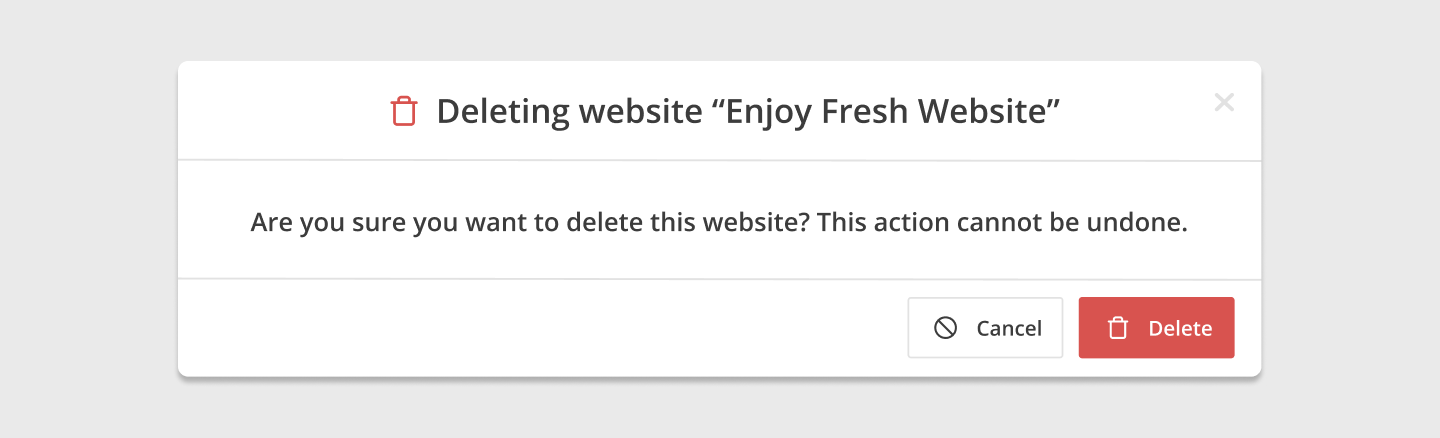
- A modal will pop up asking if you’re sure you want to delete the website.
- Click the Delete button.
- Your website will now be removed from the Media Library.
If a website is currently within a Playlist, an error message will be displayed with a link to the Playlist and the website will not be removed from the Media Library.