
What is the Calendar view?
Calendar view is a visual way of seeing all your Playlists and sequences scheduled on a Channel. Think of it like a TV guide.
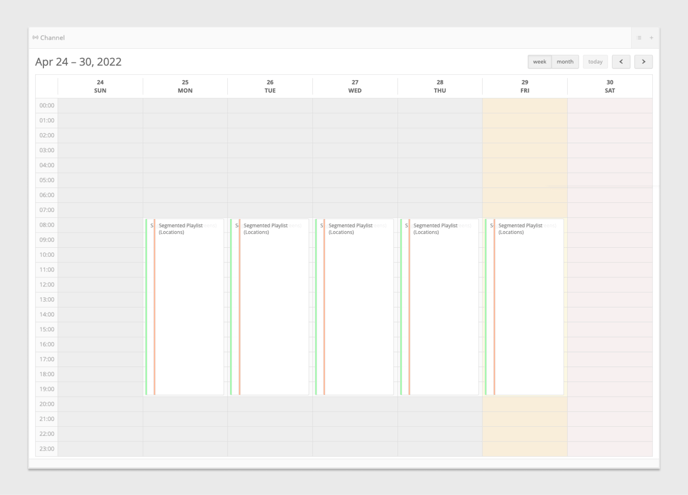
Open the Calendar view
To open the Calendar view, follow these steps:
- Open a Channel from the Channel Library.
- Next, click on the Calendar icon at the top right-hand corner of the Channel entry panel.
- The Channel entry panel will turn from list view to Calendar view.
Navigate the Calendar view
- Once you’re in Calendar view, you can:
- Navigate through your Schedules by selecting Week or Month. The default is set to Week.
- Click on the Left or Right Arrows to change the view from week to week or month to month.
- Click the Today button to reset the view.
- Click on a Schedule to open the Schedule Settings.
- To go back to list view, click the List icon at the top right-hand corner of the Channel entry panel.
Please take note of the hierarchy of your Schedules. The Schedule at the top of the Channel entry panel will play in front of the other Schedules. To read more about Schedule hierarchy, go to the Channel Settings article.